Project Progress - Week 11
- Nur Adlinlina Azmir

- Jul 3, 2020
- 1 min read
Objective in week 11:
1) Setting up file transfer service and testing.
FTP Server Installation
At Server:
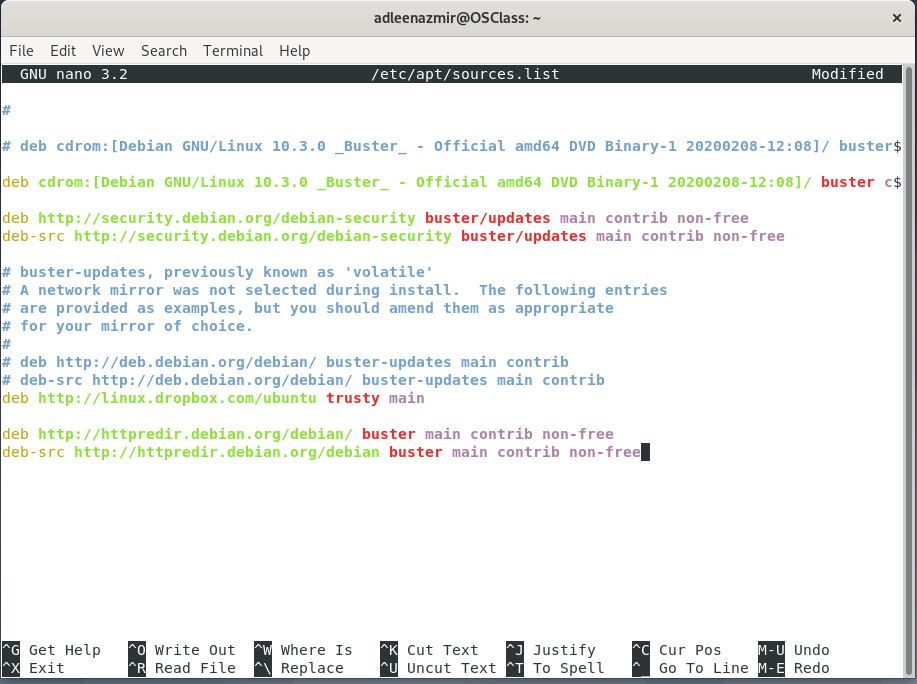
First, we need to install the vsftpd package (File Transfer Protocol server package). Insert the following command; after save and exit the changes from nano box, proceed with sudo apt-get update and sudo apt-get install vsftpd.



Enable and Start VSFTPD Service
At Server:
Next, we enable and start vsftpd service. It will required a password for authorization. So just insert password and click Authenticate. Below are the following command;


VSFTPD Configuration
At Server:
Then we need to backup the original configuration file before we modify the vsftpd configuration file.

Settle with the backup, then only we can modify the configuration file. Insert all the following line after the last blue line shown in the image below after execute this command;


After that, save and exit. Then, restart the vsftpd service with the command below;

Create FTP User.
At Server:
After restart, we create ftp user that will be allowed to connect to ftp server.

Next we will test the ftp connection through client.
Test the FTP Connection
At Client:
We have created ftp user in server, then we install FileZilla which act as ftp client to test the ftp connection in client is worked. Use this following command to install FileZilla.
- sudo apt-get install filezilla
After done with the installation, we may try and open filezilla.

Next, we insert the required information for hostname, username and password and click Quickconnect. At the same time, ensure that the server is running.
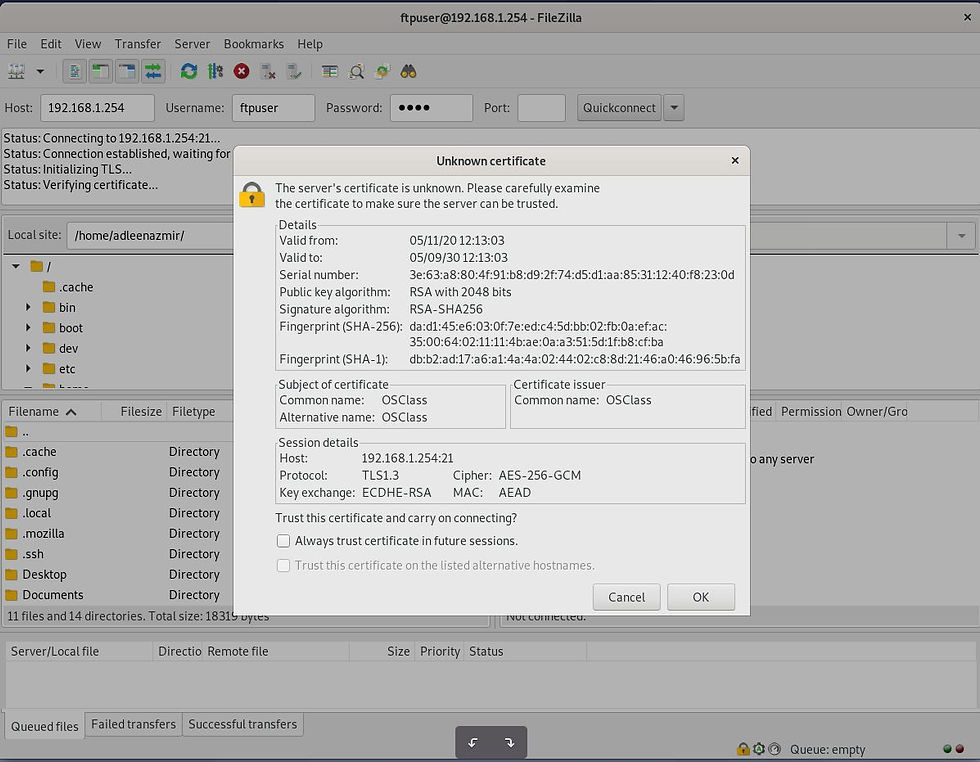
As a result, we could see that we have successfully logged in to the ftp server and are able to access files and directories of the remote server.


Comments